
Check out our website to see everything Compa can do.
Visit compa.aiThis is your default tool for real comp work. Deep reasoning, file uploads, and an exec-ready deliverable at the end. Today: how it works, when to reach for it instead of Ask mode, and how to get more out of it as you go.
A quick map of what's in the sidebar, and when we'll get to each piece.
Start a conversation in Analyze mode. That's what we're doing right now.
TodayPre-built tools for consistent, structured reports. No prompt-writing needed.
Meet PlaybooksAttach anything on the fly, or build a shared library. Upload once, reference it in any prompt.
FilesYour company's own comp philosophy, uploaded at onboarding, ready for Analyst to reference.
Comp Strategy, Prompts & WatchlistsReusable prompts you (or your team) can run again on demand.
Comp Strategy, Prompts & WatchlistsPrompts that rerun automatically on a schedule and alert you to changes.
Comp Strategy, Prompts & WatchlistsEvery output the agent generates for you, automatically archived.
FilesIf you take one thing from today, make it this: you do not need a perfectly worded question to get something useful back. Analyze mode is built to work with rough, broad, half-formed questions, not just polished ones.
Think of Analyze mode as a capable analyst you can hand a real question to. It reasons through it and comes back with something you can actually use.
Analyze mode doesn't just look something up. It reasons through your question the way a skilled analyst would, then hands back something you can use.
You'll also see Ask mode sitting next to Analyze mode. It's not a lighter version of the same thing, it's a different tool with a much narrower job: a single, quick lookup where you already know exactly what you want and don't need a deliverable back.
These are the kinds of everyday questions people actually type, nothing overly engineered. Try guessing the answer first, then reveal.
Start another chat to get more done while this one keeps running in the background.
Start another chat to get more done while this one keeps running in the background.
Start another chat to get more done while this one keeps running in the background.
If a question feels too fuzzy to ask outright, you don't have to sharpen it yourself. You can ask Analyst to help you clarify it first, before it runs the full analysis, so you end up with a well-formed prompt without having written one from scratch.
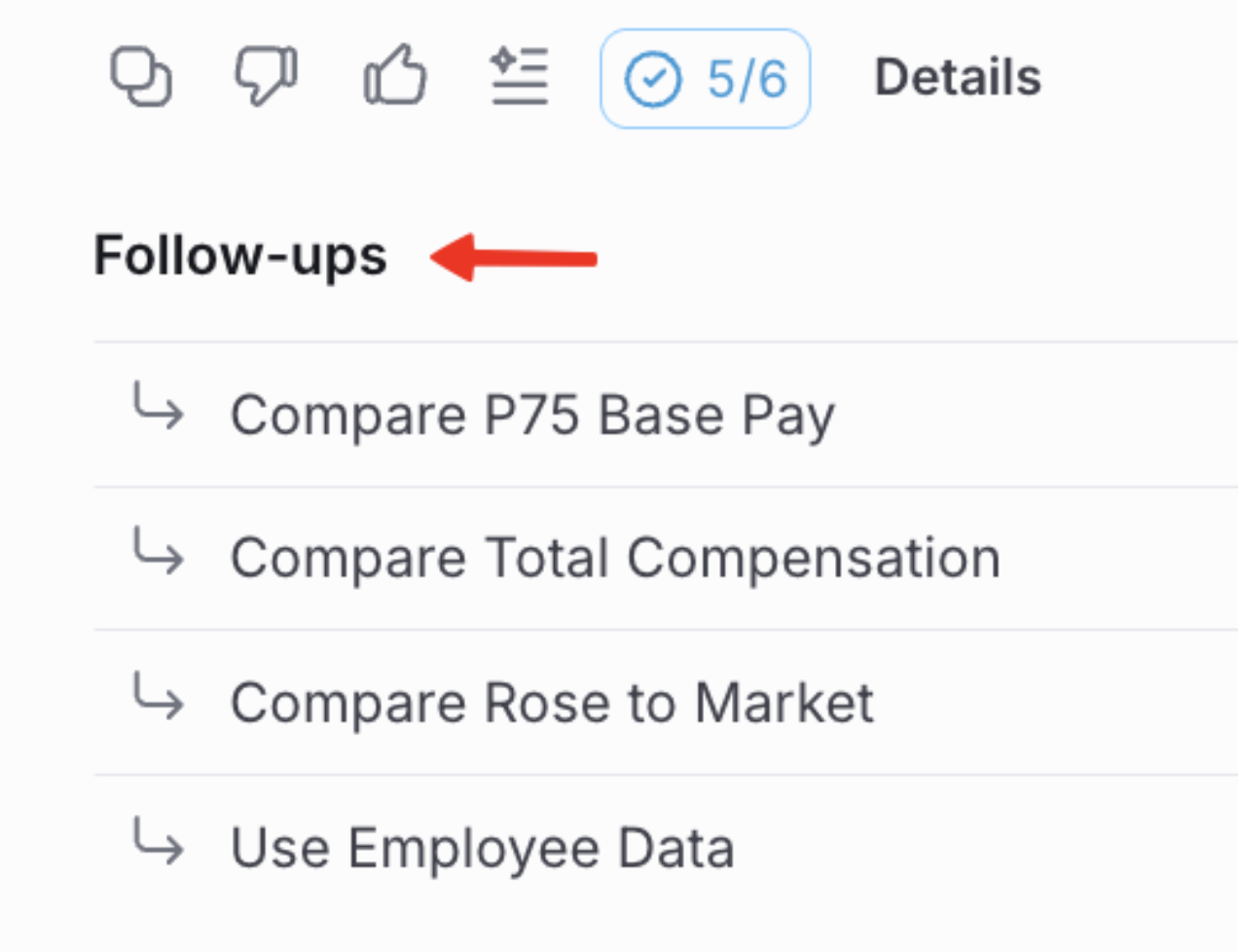
Under every response, Analyst suggests a handful of logical next questions based on what you just asked. Click one and it runs immediately, no retyping. It's how a quick two-minute answer turns into a much deeper look without much extra effort on your part.
1. What does Analyze mode actually do with a question you give it?
2. True or false: you need a perfectly detailed prompt for Analyze mode to give you something useful.
3. Which of these is the better fit for Ask mode instead of Analyze mode?
4. What does asking Analyst clarifying questions before it runs (meta-prompting) actually do for you?
5. You've just got a reply and want to dig deeper without retyping everything. What's the fastest move?
Today's goal: run one Analyze mode prompt in your real Compa workspace, on a real comp question you're curious about. Keep it broad if you want, just see what it gives back.
The quiz above locked in the difference between Ask and Analyze mode. If you'd rather drill it a faster, higher-stakes way before moving on, this arcade duel uses the same distinction — entirely optional.
You earned the Analyze Mode & Prompting badge. Keep going to collect all four.
← Back to homeYesterday you saw Analyze mode handle a rough, freeform question well. Today: the guided alternative sitting right next to it, built to pull and structure your own comp data the same way, every time.
A playbook isn't Analyze mode wearing a form. It's built specifically to pull and structure your own comp data (job descriptions, role pricing, survey files, market benchmarks) into the same consistent report, every time. Think of the hard part, the reasoning, the format, the constraints, as already built. You just fill in a few specifics, and that expands into a much longer, precise set of instructions running behind the scenes.
There's already a full library of ready-to-use playbooks beyond just these five, and the team keeps shipping more. Today we'll walk through the five flagship ones, the most-used starting point for almost every comp team.
Match a role to its Compa job family and level from a job title and description. One of the most-loved tools in the product.
Identify the closest market data and any required skills using a job description.
Price any role using Compa's prediction models and compare it to the closest market benchmark.
Compare your own survey data to Compa's data network.
Build an exec-ready packet on the market: where comp is moving and where hiring is heating up or cooling.
Click one card from each column to pair them up.
1. What's the best way to think about a playbook, compared to Analyze mode?
2. You're not sure what job family and level a new role belongs to. Which playbook first?
3. You just bought a salary survey and want to see how it compares to Compa's data. Which playbook?
4. True or false: these five playbooks are the entire library, and no more will be added.
Today's goal: run one of the five playbooks in your real Compa workspace, on a role or question you're actually working on.
The quiz above checked whether you know which playbook fits which need. This turns that same skill into a 5-choice arcade duel — entirely optional.
You earned the Meet Playbooks badge. Keep going to collect all four.
← Back to homeToday's about Files: attaching anything on the fly, building a shared library for things you'll reuse, asking for the actual file back instead of just a chat answer, and finding it again later.
A spreadsheet, a screenshot of a recruiter's email, the slide you're stuck on. Drag it straight into an Analyze mode conversation and ask what to do with it. No separate upload flow, no explaining context first.
If it's relevant to a comp question, it's probably worth handing over. A few common examples people attach in the moment.
Attach your comp philosophy and ask where current offers are out of step with it.
Attach a write-up of how you run a recurring review, and ask Analyst to run it for you.
Attach an exception request and ask for a market check plus a drafted reply.
Attach a few recruiter emails and ask which have a real market case behind them.
Upload a file once to Files, and any prompt (Ask, Analyze, a playbook, a Watchlist) can reference it. No need to re-attach the same file every time.

The middle tab shows your own company's name in place of "Lilac" above, it's just this workspace's.
Dummy market data, good for testing a prompt before pointing it at real data.
Survey data for two peer groups, Primary Peers and Broad Peers, beyond Compa's own market data.
Your own internal job architecture and compensation ranges, referenced right alongside market data.
Match each file to what you'd actually use it for.
The same analysis can come back in whatever shape you actually need. Name the format and the audience, and Analyst does the rest: an Excel workbook, a PDF one-pager, a slide deck, a Word doc, an HTML dashboard, a chart, or a plain table.
Send these in order, same chat. Each turn builds on the last, you never re-explain the setup.
Every thread where the Agent made a file for you, in one list, under Deliverables in the left nav. That workbook from earlier, the deck you half finished, filter by type and open the thread. No scrolling through History hoping to spot it.
The three-dot menu on any thread in History lets you pin it to the top, rename it to say what's actually in it instead of what you first typed, or delete it. Ten seconds of housekeeping a week, and History becomes a filing cabinet instead of a scroll.
1. You want to hand Analyst a screenshot for a one-off question. What's the move?
2. You keep attaching the same market survey file to every prompt. What's the better move?
3. You want the same analysis back as both a chart and an Excel workbook. What do you do?
4. True or false: you should sit and wait for each deliverable to finish before doing anything else.
5. Where do you go to find every file the Agent has ever generated for you?
Today's goal: in your real Compa workspace, attach one file directly in a conversation, and upload one file you use often to the Files library. Then open Deliverables and pin your favorite result.
The quiz above checked whether you know when to attach something once versus save it to the Files library. This turns that same judgment call into a quick arcade duel — entirely optional.
You earned the Files badge. Keep going to collect all four.
← Back to homeToday ties together three more pieces of the sidebar: your Compensation Strategy, reusable Prompts, and Watchlists that run themselves.
At onboarding, your company's own Compensation Strategy gets uploaded, organized into categories like Compensation Philosophy, Pay Positioning, Pay Mix, Geo Differentiation, Job Architecture, Equity Guidelines, Cycle Protocols, Governance, and more. Once it's in, Analyst Agent can reference it directly, so answers reflect your actual policy, not just general market data.
Core beliefs on fairness, transparency, and pay-for-performance that shape every other policy.
How you benchmark against the market, and how pay adjusts by location.
Policy boundaries, leveling structure, and how job changes get handled.
A Prompt is a saved question you (or your whole team) can run again with one click, no retyping. Community gives you a starter library, and your company's shared prompts and your own personal ones each get their own tab.
"I'm new to Analyst Agent. Show me how to get started with compensation analysis and give me 5 prompts to try."
"What is the P50 (median) base salary for the Software Engineering job family at level P4 in the San Francisco Bay Area?"
"Review all entries in our compensation strategy configuration. Identify conflicts and redundancies, and refine anything unclear so it's optimized for AI execution."
A Watchlist reruns a saved prompt automatically and surfaces what changed. No need to remember to check back.
The useful pattern is two sides that shift at different rates, your side slow, the market fast, and a flag the moment the gap between them changes.
Are we drifting from where the market is overall?
Are our ranges going stale as the market moves?
Are we winning or losing candidates on pay?
What actually changed since the last check?
There's no calendar to configure. A Watchlist reruns whenever the underlying market data refreshes, roughly every couple of weeks as new data comes in, and every active Watchlist checks itself the same day. The result just shows up, nobody has to go ask for it.
Trust the agent. For one week, send everything comp-related through it first — even the stuff you'd normally do by hand. The tool can handle more than you think. Go find out how much.
1. What's the Compensation Strategy for, once it's uploaded?
2. Your Compensation Strategy has grown messy over time, with a few contradictory entries. What's the move?
3. You've written a great prompt and want your whole team to reuse it without retyping. Where does it belong?
4. You want to know automatically if P4-P5 offers start compressing, without checking manually every week. What do you set up?
5. What actually triggers a Watchlist to rerun?
Today's goal: in your real Compa workspace, run the Comp Strategy Audit prompt once, save one prompt you'd reuse, and set up one Watchlist on something you'd otherwise check manually.
Brings back Files from yesterday alongside Prompts and Watchlists, all in one quick arcade duel — entirely optional.
You earned the Comp Strategy, Prompts & Watchlists badge. That wraps up the series.
← Back to home